How to Troubleshoot Communication Failures in Wireless Motion Detectors
Start by replacing the battery-even if it seems fine, older ones can fail under load. Use lithium batteries for better performance, especially in extreme temperatures. Power down both the detector and system, then re-pair them to restore communication. Reduce interference by keeping the detector away from Wi-Fi routers, microwaves, and metal objects. Position it with a clear line-of-sight to the hub, mounted vertically at 6 to 8 feet. Make sure the hub is online and has a stable connection. Check for firmware updates through the manufacturer’s app. Ensuring these basics are correct often resolves connectivity issues-there’s more to explore for persistent problems.
Notable Insights
- Replace batteries with fresh lithium ones and clean the battery compartment to ensure reliable power.
- Re-pair the motion detector with the system by syncing both devices after powering them down.
- Reduce wireless interference by relocating detectors away from Wi-Fi routers and using frequency-hopping models.
- Optimize placement with clear line-of-sight to the hub, avoiding metal objects and thick walls.
- Update detector and hub firmware, and confirm the hub has power and a stable internet connection.
Check Your Motion Detector’s Battery
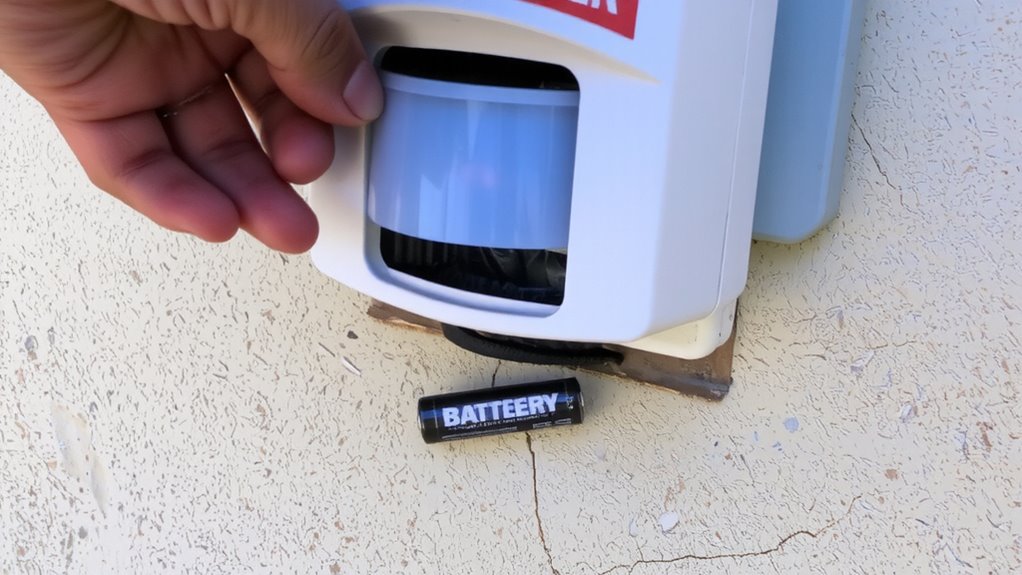
Most wireless motion detectors rely on batteries, so checking the power source is often the quickest way to resolve a malfunction. If your device isn’t responding, start by replacing the batteries, even if they seem functional-older batteries may deliver insufficient voltage under load. Inspect the battery compartment for signs of battery corrosion, which can disrupt electrical contact and lead to intermittent operation. Clean any residue carefully with a cotton swab and rubbing alcohol. Power fluctuations, often caused by weak or aging batteries, can also prevent reliable signal transmission. Use lithium batteries for longer life and more stable performance, especially in extreme temperatures. Avoid rechargeables, as their lower voltage and tendency to degrade faster may increase failure risk. Regular battery checks every six months help maintain consistent operation. Proper power management reduces false alarms and guarantees your detector remains alert. This simple maintenance step supports reliable, long-term performance.
Re-Pair Your Motion Detector Correctly
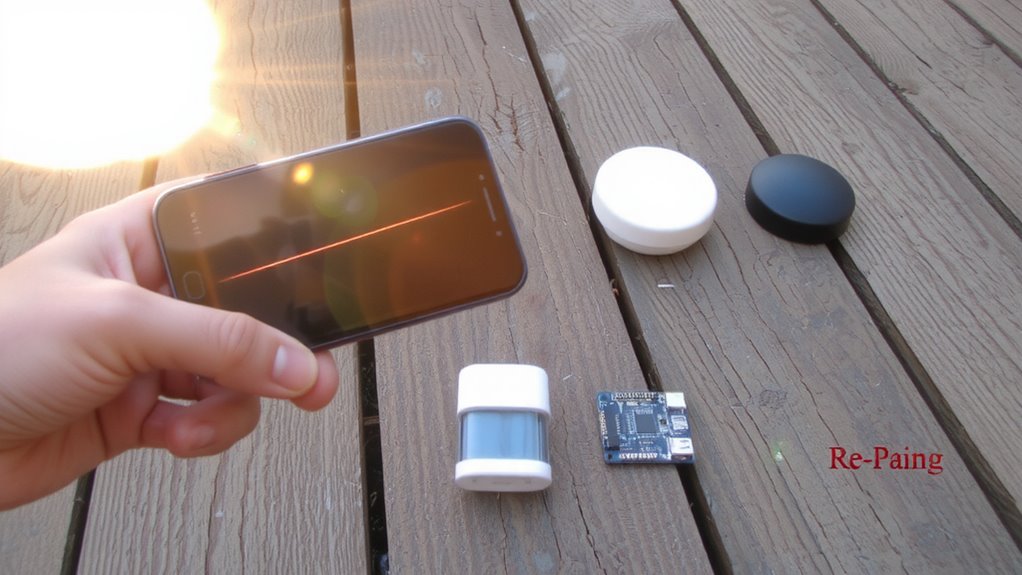
After confirming your motion detector has fresh batteries and a clean power connection, the next step is making sure the游戏副本 device is properly paired with your security system. If signals aren’t registering, you may need to reset pairing to reestablish communication. This process varies by model, but typically involves pressing a sync button on both the detector and control panel. Make sure you align frequency settings so both devices operate on the same channel. Interference or software glitches can desynchronize units over time. A reliable choice for seamless integration is selecting from the best motion detectors that are designed for easy pairing and strong signal consistency across home networks.
| Step | Action |
|---|---|
| 1 | Power down the detector and system |
| 2 | Initiate pairing mode on the control panel |
| 3 | Press sync button on the detector |
| 4 | Confirm successful connection via system alert |
Follow your manual’s instructions closely to align frequency and complete reset pairing correctly.
Reduce Wi-Fi and Signal Interference
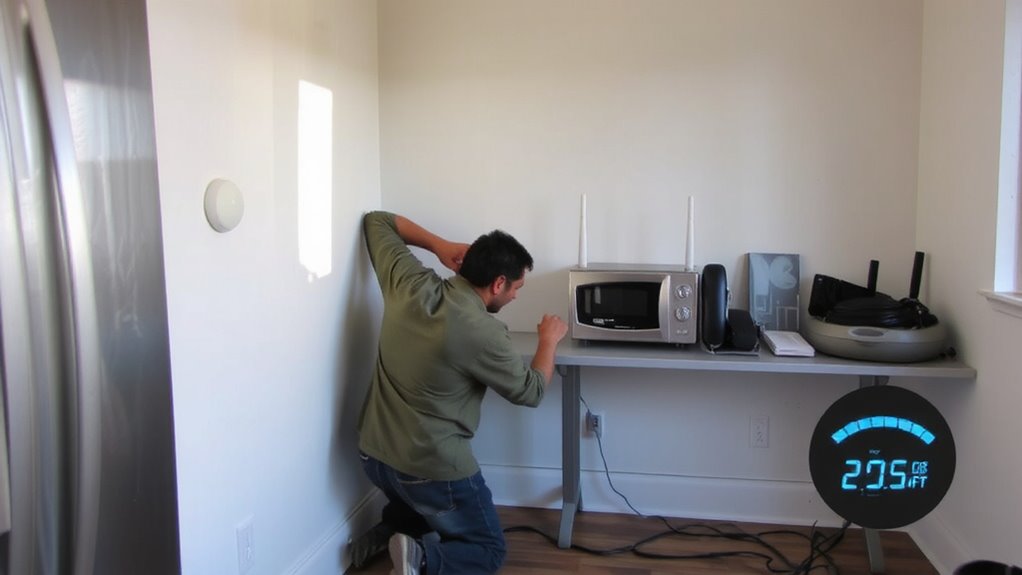
Why might your motion detector struggle to maintain a stable connection, even after successful pairing? Interference from nearby wireless devices could be disrupting its signal. Wi-Fi routers, baby monitors, and microwaves often operate on the same 2.4 GHz band, causing congestion. To reduce this, check your motion detector’s channel selection and choose a less crowded frequency. Many modern detectors support frequency hopping, automatically switching channels to avoid interference, which improves reliability. Devices without this feature may drop signals during peak usage times. For best results, keep your detector away from large metal objects and other electronics. If your system allows manual channel adjustment, test each option and monitor performance. While frequency hopping systems usually cost a bit more, they’re worth it for stable operation in busy wireless environments. A reliable option for minimizing interference issues is choosing one of the best motion sensors for Home Assistant.
Fix Placement to Improve Signal Range
Even if your motion detector pairs successfully, poor placement can still weaken its signal strength and reduce effective range. You should position the device with clear line-of-sight to the hub, avoiding large obstructions like thick walls or metal furniture. Pay attention to antenna orientation-vertical placement often improves signal transmission, especially for units with external antennas. Avoid mounting near reflective surfaces that cause signal reflection, as this can create dead zones or interference. Place detectors centrally in the intended coverage area, ideally elevated between 6 and 8 feet. Test signal strength after moving a unit, using your system’s signal meter if available. Small adjustments in placement or angle can boost performance markedly. Avoid corners or enclosed spaces, which limit both motion sensing and wireless communication. Proper positioning guarantees reliable detection and consistent connectivity. For added safety during installation, consider wearing protective gear recommended for handling electronic devices.
Update Your Security System’s Firmware
You’ve made certain your motion detector is in the best spot for strong signal performance, but signal issues can still persist if your security system isn’t up to date. Outdated firmware can cause communication errors, even with perfect placement. Regularly updating your system guarantees firmware compatibility with all connected devices, reducing the risk of dropped signals or false alarms. Most modern systems support automatic update scheduling, so you don’t have to remember manually. Check your manufacturer’s app or portal to enable this feature. Firmware updates often include bug fixes, security patches, and performance improvements proven to enhance reliability. Neglecting updates may void warranties or leave your system vulnerable. While updates take minutes, they markedly improve long-term function. Confirm your model’s update process in the manual, and allow at least a monthly check if automatic scheduling isn’t available. Keeping firmware current is a small step with measurable benefits for system stability and response accuracy.
Re-Sync Your Motion Detector
How do you guarantee your motion detector is properly communicating with the main system after troubleshooting placement and firmware? Re-syncing resets the connection and corrects signal drift caused by environmental interference or power fluctuations. Start by putting your hub in pairing mode, then press the sync button on the detector. Most models confirm success with a flashing light or alert in the app. A successful sync reestablishes a strong frequency lock, ensuring consistent communication. If sync fails, check battery levels and interference from large metal objects or new electronics. Re-syncing every few months can prevent communication lapses. While not always necessary, it’s a quick fix that improves reliability. This step is free and takes under five minutes-no tools required. Always refer to your model’s manual for exact steps.
Check If Your Hub Is Online?
Why might your motion detector fail to respond even after re-syncing? The issue could lie with your hub. If the hub is offline, communication breaks down, no matter how well the sensor is synced. Check your hub’s power and connection lights-most have indicators showing active status. No light or a red blink usually means it’s not online. Hub connectivity depends on both your local network and internet stability. Restart your router if the hub appears disconnected. Confirm your Wi-Fi is stable and functioning by testing another smart device. Poor internet stability can interrupt signal transmission between the hub and cloud services, delaying or blocking alerts. Make certain the hub is within range of your router and free from interference. A wired Ethernet connection often improves reliability. Verify your service provider isn’t experiencing outages. This simple step saves time and gets your system running again fast.
On a final note
You’ve checked the battery, re-paired the device, and reduced signal interference-these steps often resolve most issues. Proper placement and updated firmware improve reliability, while a synced, online hub guarantees communication. If problems persist, consult your system’s logs for error patterns. Most fixes are simple and low-cost, but recurring issues might mean hardware failure. Consider warranty options or upgrading to a more resilient model if needed.