Using Geofencing Technology to Automatically Arm Your Home Security System
Your phone’s GPS or Wi-Fi creates a virtual boundary around your home, automatically arming your security system when you leave. Set the geofence radius between 50 and 200 feet for reliability, with a 30–60 second exit delay. Guarantee your app runs in the background, has proper permissions, and uses dual-location verification for better accuracy. Signal delays or battery-saving modes can prevent arming, so regular testing and updates help maintain performance-explore how to fine-tune these settings for consistent results.
Notable Insights
- Geofencing uses your smartphone’s GPS or Wi-Fi to create a virtual boundary that triggers automatic arming when you leave the zone.
- Ensure your security system supports geofencing and is linked to your phone’s location services for seamless automation.
- Set the geofence radius between 50 and 200 feet to balance reliable detection and timely system arming.
- Enable app permissions for location and background activity to prevent battery-saving modes from disrupting geofencing functions.
- Improve accuracy by using dual-location verification via GPS and Wi-Fi, and regularly calibrate the geofence in the app.
What Is Geofencing in Home Security?
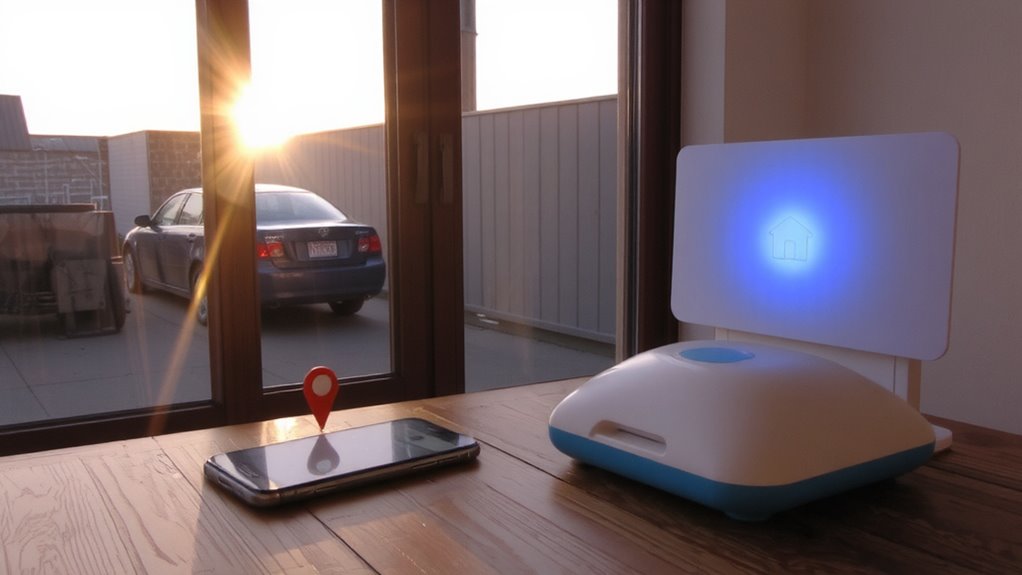
While you may not realize it, geofencing uses your smartphone’s GPS or Wi-Fi connection to create a virtual boundary around your home, triggering automated actions when you enter or leave that zone. This technology enhances home security by, for example, disarming your system when you arrive and arming it when you leave-all without manual input. However, location accuracy can vary due to signal delays or environmental interference, sometimes causing missed triggers or false alarms. You should also consider privacy concerns, as your device continuously shares location data with the security app. Reputable systems encrypt this data and allow you to review permissions, minimizing risk. Setup typically requires a compatible smart security system and a stable internet connection. While convenient, relying solely on geofencing may not suit everyone-evaluate your daily routine and device reliability before full adoption.
How to Set up Automatic Arming With Geofencing
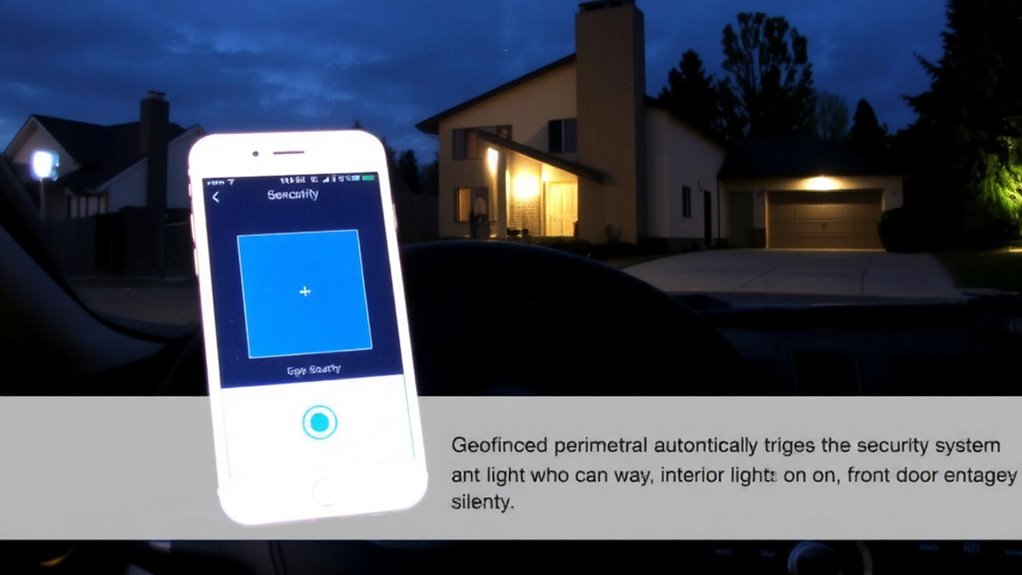
You can set up automatic arming with geofencing by first making sure your smart home security system supports the feature and linking it to your smartphone’s location services. Check device compatibility-your phone and security system must work together through a trusted app. Then, enable user permissions so the app can access your location when needed. Once connected, define your geofence radius in the app, usually between 50 to 500 feet from home. When you leave, the system detects your phone exiting the zone and arms itself after a set delay, giving you time to exit. It disarms when you return, provided your phone re-enters the zone. Test it multiple times to confirm reliability. This automation reduces human error, but remember, poor signal or disabled location settings can disrupt it. Make sure consistent phone battery and location accuracy for best results.
Choose a Home Security System With Reliable Geofencing
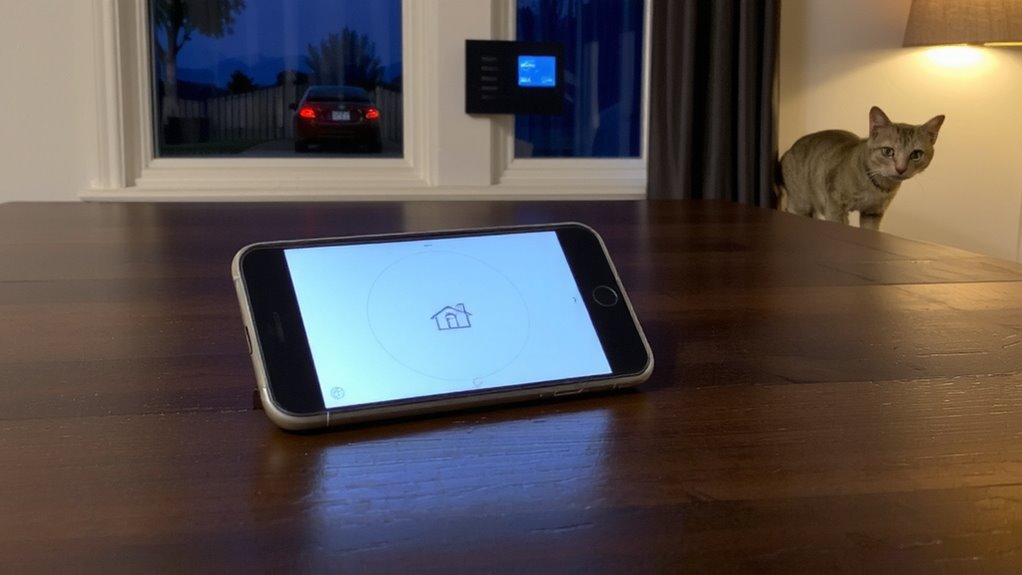
A reliable home security system with strong geofencing capabilities starts with verified device integration and consistent location tracking. You’ll want to guarantee solid device compatibility so your smartphones and tablets communicate seamlessly with the security hub. Signal accuracy is critical-poor GPS handling can leave your system disarmed when it shouldn’t be. Look for systems that use dual-location verification, combining GPS and Wi-Fi for better precision. Below is a comparison of key features in leading systems:
| Feature | High-End System | Mid-Tier System | Budget System |
|---|---|---|---|
| Device Compatibility | Excellent | Good | Limited |
| Signal Accuracy | High | Moderate | Low to Moderate |
| Bonus Features | Automation Sync | Basic Alerts | Manual Override Only |
Choose wisely based on your needs, balancing price with dependable performance.
Fix Geofencing That Doesn’t Arm Your System
Why does your geofencing fail to arm the system when you leave home? It often comes down to signal delays or incorrect app settings. Start by checking your phone’s location accuracy-GPS, Wi-Fi, and cellular signals all affect performance. Weak connectivity can cause delays, so you should troubleshoot signal delays by testing location services in different areas around your home. Make sure the security app runs in the background and isn’t restricted by battery-saving modes. You must also verify app permissions, especially location and background activity access, since blocked permissions prevent triggering the geofence. Restart your phone and the security app if issues persist. Some systems log activity, letting you review failed arming events. Check these logs to confirm if the geofence registered your exit. Updating the app and firmware can also fix bugs.
Optimize Your Geofence Radius and Timing
Three key factors-radius size, exit delay, and location accuracy-determine how well your geofence performs, and getting them right means your system arms reliably every time you leave. Set the radius between 50 and 200 feet; too small, and signal delay might prevent timely arming, too large, and your system could arm while you’re still near home. Adjust the exit delay to 30–60 seconds, giving you enough time to leave the area before activation. Poor GPS reception or Wi-Fi switching can cause signal delay, so test your setup during different times and routes. Geofence calibration improves performance-most apps allow you to fine-tune location triggers based on real-world testing. Recalibrate after moving your router or changing phone settings. Consistent testing guarantees fewer missed arming events. Proper configuration reduces false alarms and boosts reliability, making your smart security system more effective without extra cost or complexity.
On a final note
You can rely on geofencing to automatically arm your security system when you leave, but only if your system supports stable location tracking. Set the radius between 50–200 feet for best results, and allow a 1–2 minute delay to prevent false triggers. Test regularly, as GPS accuracy can vary by phone and environment. Choose systems with strong app ratings and offline backup. Expect higher-end models to cost more, but they often deliver better performance and fewer issues over time.