How to Set Up Geofencing Alerts Using Your Smartphone and Home Alarm System
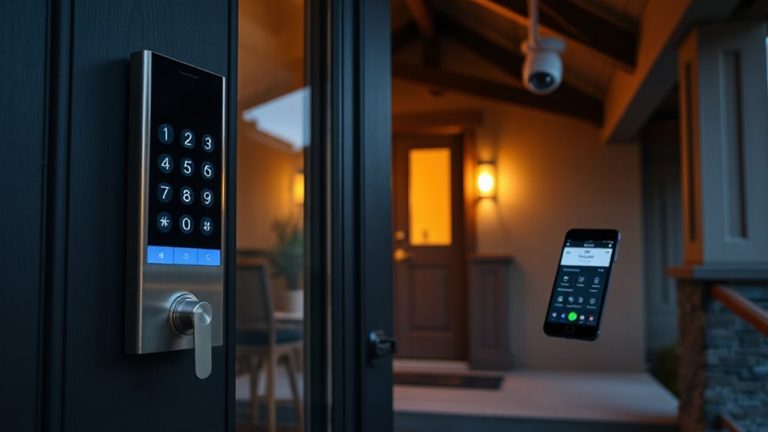
You can set up geofencing alerts by enabling location services on your smartphone and linking it to a compatible home alarm system. Confirm your security app supports geofencing, then create a virtual boundary around your home using the app, adjusting the radius between 50 and 500 feet. Turn on arrival and departure alerts for family members, and test the setup by leaving and re-entering the zone. Keep your app updated and disable battery restrictions to guarantee reliable performance. Further details reveal how to fine-tune accuracy and avoid common issues.
Notable Insights
- Verify your alarm system and smartphone app support geofencing and have necessary permissions enabled.
- Enable GPS and Wi-Fi location services on your smartphone for accurate real-time tracking.
- Define a geofence perimeter in the security app using a map pin or address, adjusting radius between 50–500 feet.
- Set up customized arrival and departure alerts for each family member through the app’s notification settings.
- Test the geofence by leaving and re-entering the zone, and disable battery optimization to ensure reliable alerts.
How Geofencing Alerts Keep You Informed
Ever wondered how your phone knows when you’ve nearly reached home? That’s geofencing at work, using real time tracking to monitor your device’s location. When you enter or leave a set perimeter around your house, your smartphone triggers automated responses from your home alarm system. These alerts keep you informed about comings and goings without manual input. For example, you can receive a notification when your partner arrives, or confirm the system disarmed upon your arrival. Real time tracking guarantees updates are accurate and timely, while automated responses save effort. Most systems use GPS and Wi-Fi to maintain reliability, though signal delays can occasionally occur. Setup is usually free within existing security apps, requiring only location permissions. Consider battery impact-constant tracking may drain power faster. Overall, it’s a practical tool for awareness, simplicity, and consistent home monitoring.
Check Your Alarm System’s Geofencing Support
How do you know if your current alarm system can use geofencing? Start by checking your system’s alarm compatibility with smartphone-based location services. Most modern systems support geofencing, but older models may not. Review the integration requirements listed by the manufacturer, including app version, Wi-Fi connectivity, and GPS permissions. Confirm that your security app allows location-based automation and works with your phone’s operating system. Below is a quick reference:
| Feature | Supported? |
|---|---|
| Geofencing in app | Yes / No |
| GPS tracking | Yes / No |
| Real-time alerts | Yes / No |
| Alarm compatibility | Varies by model |
| Integration requirements | Check app settings |
Verify these settings early to guarantee smooth setup later.
Create a Geofence in Your Security App
Once you’ve confirmed your system supports geofencing, open your security app and navigate to the location settings to begin setting up a geofence. You’ll need to define location boundaries by selecting your home’s address or dropping a pin on the map. Most apps let you adjust the radius, typically between 50 and 500 feet, creating a virtual perimeter around your property. This perimeter uses GPS and cellular data to detect when your phone enters or leaves the zone. Make sure your smartphone’s location services are enabled for accurate tracking. Some systems allow multiple geofences for different family members or locations. Test the range to avoid false triggers, as dense urban areas or weak signals can affect performance. A well-configured geofence improves automation and security, but relies on consistent phone connectivity. Always review app permissions and privacy settings to balance functionality and data control.
Set Up Alerts for Family Arrivals and Departures
Now that you’ve created a geofence in your security app, you can configure arrival and departure alerts to stay informed about family members’ movements. This feature supports family safety by automatically notifying you when loved ones enter or leave the geofenced area. Enable arrival tracking for each family member’s smartphone within the app, ensuring location services are active and shared securely. Most systems allow custom alerts per person, so you can differentiate between a child’s return from school or a partner’s arrival home. These real-time updates help monitor routines without constant check-in calls. While setup is generally simple, keep in mind that accuracy depends on GPS and network strength. For best results, select a geofence radius between 100 and 500 feet. This balance improves reliability while minimizing false alerts. Many home security plans include this feature at no extra cost, making it a practical addition to daily safety habits.
Test & Fix Geofencing Notifications
Why do some geofencing alerts arrive late-or not at all? The culprit is often battery optimization settings, which can restrict background app activity. When your phone tries to save power, it may delay or block geofencing triggers, leading to notification delays. To fix this, disable battery optimization for your home alarm app in your smartphone settings. On Android, go to Settings > Apps > [Your Alarm App] > Battery > Unrestricted. For iPhone, make certain Background App Refresh is on. Test the system by walking out of and returning to your geofence zone. If alerts still lag, check GPS accuracy and Wi-Fi connectivity. Repeating this test at different times guarantees reliability. Fixing these issues improves alert precision, giving you dependable, real-time updates every time someone arrives or leaves.
On a final note
You now know how to link your smartphone to your alarm system for geofencing alerts. Check app compatibility, set up arrival and departure alerts, and test them regularly. While convenient, geofencing can drain battery life and sometimes misfire. Look for systems with reliable GPS filtering and low-power modes. Most modern security apps offer this feature, often included in standard monitoring plans. Plan for occasional recalibration to keep alerts accurate and useful.