Implementing Automatic Pause of Recording During Family Privacy Hours
You can automatically pause your camera recordings during family privacy hours using scheduled downtime features in most modern smart cameras. Just open the app, go to Settings > Privacy or Schedule, then set start and end times for each day. Pick times aligned with routines like mornings or bedtime to reduce data by up to 30%. Check that your device-like a Nest, Arlo, or Ring model-supports this feature and has the latest firmware. If recordings continue, verify time zones, disable overrides, and review logs. Parental consent is required for changes, ensuring accountability. Common issues often stem from incorrect settings, not hardware flaws. You’ll find tailored setup tips and troubleshooting steps shortly after this.
Notable Insights
- Enable automatic pause during family privacy hours using your smart camera’s mobile app scheduling feature.
- Set precise daily downtime periods aligned with routines like bedtime, meals, or morning preparations.
- Verify device compatibility, as models from Nest, Arlo, and Ring support scheduled pauses in newer versions.
- Ensure accurate timezone settings and save automation rules to prevent recording during intended privacy hours.
- Address issues like missed pauses by checking for firmware updates, sensor errors, or unintended manual overrides.
Enable Automatic Pauses for Family Privacy
Why leave your cameras running all night when you don’t need them to? Enabling automatic pauses during set privacy hours helps protect your family’s personal time without constant manual input. You can schedule these pauses around routines like bedtime or mornings, ensuring sensitive moments stay private. When the system is idle, it stops recording and applies data encryption to any stored footage, so unauthorized access remains unlikely. Parental consent is required to adjust these settings, adding a layer of accountability for household safety decisions. This feature works well in homes with children, balancing security and dignity. While it reduces unnecessary data collection, remember that missed events could occur if schedules shift unexpectedly. Planning around consistent family routines maximizes effectiveness. Most smart camera systems offer this function through their app, often included at no extra cost.
Set Up Scheduled Downtime (Step by Step)
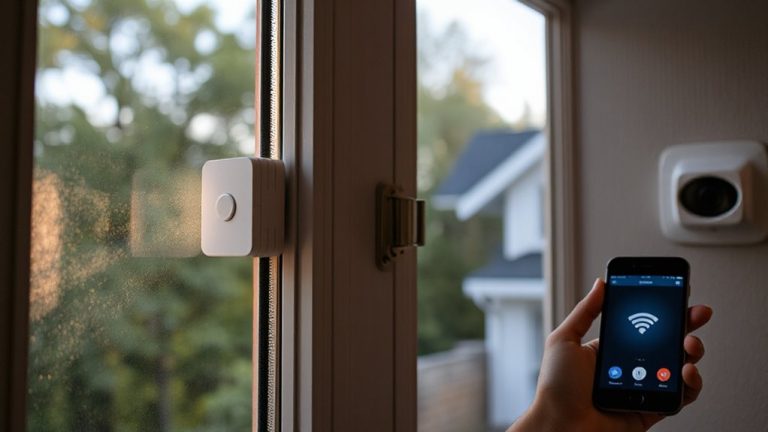
Once you’ve decided on the privacy hours that align with your family’s routine, setting up scheduled downtime becomes a straightforward process through your smart camera’s mobile app. Open the app, navigate to Settings, then select Privacy or Schedule. Choose “Scheduled Downtime” and define the start and end times for your pauses. Most systems let you set unique schedules for each day, which helps match your daily routines. You can enable scheduled breaks during meals, bedtime, or homework hours without manual intervention. Verify the timezone is correct to avoid timing errors. Confirm the settings and test the feature for one day to verify it works. This automation supports consistent privacy without compromising security outside those windows. While convenient, remember that recording pauses mean no footage is captured during those times-plan accordingly. For optimal performance, choose a camera that supports reliable indoor security camera functionality with consistent app integration.
Pick the Best Privacy Hours for Your Home
You’ve set up scheduled downtime, so now it’s time to fine-tune when those privacy periods should happen. Think about your household’s routine to choose times that support family safety and respect personal boundaries. Most families benefit from pausing recordings during early mornings, late evenings, or meal times-moments when privacy matters most. Consider when kids get ready for school or when adults may change clothes. These aren’t just preferences-they’re core to maintaining trust and comfort at home. Align privacy hours with actual behavior, not assumptions. For example, if dinner ends at 7 p.m., set the pause to resume at 7:30. Balancing security and privacy means being intentional. The best schedule protects your home while honoring private moments. You’ll feel more confident knowing recordings align with your family’s values and daily rhythm.
Find Devices With Automatic Pause Support
Not all smart home devices offer the same level of control when it comes to privacy, so checking compatibility is the first step. You’ll want to confirm device compatibility with automatic pause features before setting up privacy hours. Many newer smart cameras and doorbells from brands like Google Nest, Arlo, and Ring support scheduled recording pauses, but older models may not. Always check the manufacturer’s specifications or app settings to verify. Firmware updates often add or improve privacy functions, so keeping your devices current guarantees access to the latest tools. Don’t assume your device has the feature just because the brand supports it-model variations matter. Make a list of your devices, check their support pages, and enable any available firmware updates. This groundwork guarantees your system can reliably pause recordings during your chosen privacy hours without gaps or unexpected behavior. A key option to consider is the Best Ring Doorbells for models that support automatic recording pauses during privacy hours.
Fix Common Pause Problems
While most modern smart home devices handle automatic pause features reliably, occasional issues can disrupt your privacy schedule. You might notice recordings continuing during family time, often due to incorrect time settings or failed triggers. Check your device’s schedule alignment with your home’s time zone and guarantee automated rules are saved correctly. Troubleshooting sensor errors is critical-motion or audio sensors may falsely detect activity, preventing pauses. Recalibrate or reposition sensors to reduce false triggers. Also, be mindful of managing manual overrides; if you restart recording manually, the system may not resume automation until reset. Many apps include logs to review override history and timing. For reliable performance, choose devices with clear automation feedback and scheduled reset functions. Regular maintenance, like updating firmware, helps prevent common pause problems.
On a final note
You can confidently set automatic pauses during family privacy hours using built-in scheduling on most modern smart cameras. Check device compatibility first, as not all models support timed recording stops. Scheduled downtime helps balance security and privacy, but make certain gaps don’t leave blind spots. Weigh the pros-like peace of mind-against cons, such as missed event capture. Test the feature weekly and adjust timing as needed for best results.