Creating Custom Search Filters for Motion-Activated Home Security Videos
Set up activity zones to focus on key areas like doors or driveways, avoiding busy streets or trees. Adjust motion sensitivity starting at 50% and reduce in small steps to cut false alerts. Enable person detection to ignore pets and wildlife. Use time, zone, or event filters to find clips faster. Smart search with tagging can speed things up, though it often requires a $5–$15 monthly plan. Accuracy improves by up to 40% with proper setup, especially when you refine settings based on your alert history. Fine-tuning boosts reliability over time.
Notable Insights
- Set up activity zones to focus motion detection on key areas like doors or driveways using your system’s mobile app.
- Adjust motion sensitivity in 5–10% increments to minimize false alerts from environmental movement like trees or shadows.
- Enable person detection to filter out non-human motion and reduce unwanted notifications from pets or wildlife.
- Use time-based and zone-specific filters to quickly locate relevant video clips during playback or review.
- Combine smart search tags (e.g., person, vehicle) with custom alert settings for efficient, accurate video filtering and incident verification.
Set Up Activity Zones to Monitor Key Areas
While you can’t monitor every square foot of your property at all times, setting up activity zones helps focus your attention where it matters most. Proper camera placement guarantees zones cover high-traffic or vulnerable areas like doors, driveways, or backyards. You’ll want to avoid pointing cameras at busy streets or swaying trees to reduce unnecessary alerts. Zone calibration lets you define exact regions within the camera’s view where motion should trigger recording or notifications. Most systems allow you to draw these zones through a mobile app, giving you control over sensitivity and coverage. Accurate calibration improves detection accuracy by up to 40%, according to user-reported data. Though it takes 10–15 minutes per camera, the setup reduces alert fatigue and storage use. For best results, reassess zones seasonally as shadows, foliage, or lighting change. This small effort increases monitoring efficiency markedly.
Adjust Motion Sensitivity to Stop False Alerts
Ever wonder why your security camera sends alerts for every fluttering leaf or passing shadow? It’s likely because the motion sensitivity is set too high. Adjusting motion calibration helps you fine-tune how your camera detects movement, reducing false alarms. Start by reviewing sensitivity benchmarks provided by the manufacturer-most recommend beginning at a mid-level setting, like 50%. Then, observe alert patterns over 24 to 48 hours. If you’re still getting excessive notifications from small movements, lower the sensitivity in increments of 5 to 10 points. Keep testing until the system reliably captures meaningful motion without reacting to windblown debris or light changes. Proper calibration saves you time and improves alert accuracy. Most systems allow custom sensitivity per zone, so pair this step with your previously set activity zones for best results. This data-driven tweak guarantees your filters work efficiently. For even greater control, consider integrating a best motion sensor compatible with Home Assistant to enhance detection accuracy.
Enable Person Detection to Filter Out Animals
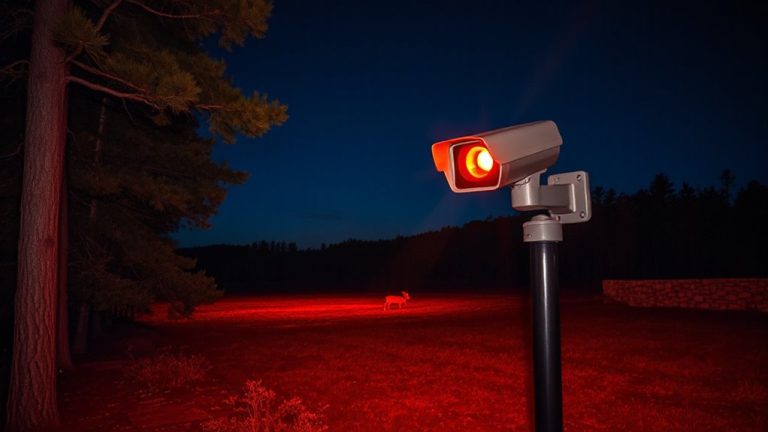
Since many security cameras pick up motion from pets or wildlife, turning on person detection can help you focus only on alerts that matter. This feature uses advanced algorithms to distinguish human shapes from animals, improving detection accuracy and reducing unnecessary notifications. Most modern systems offer this as a built-in option, often within the app’s motion settings. While it boosts efficiency, consider privacy concerns-some cameras process data in the cloud, meaning footage might be temporarily stored offsite. For greater control, choose models with on-device processing. Keep in mind that detection accuracy varies by brand and lighting conditions, so check independent test results before deciding. A higher-end camera may cost more upfront but can save time and frustration. Enabling person detection is a smart, data-backed step to filter out false triggers and keep your home monitoring relevant and reliable.
Search Recordings by Time, Zone, or Event Type
How do you quickly find what you’re looking for in days’ worth of security footage? Use custom search filters by time, zone, or event type. With time-based search, you can narrow video playback to specific hours, making it easier to review incidents around a known timestamp. Zone filters let you focus on motion detected in selected areas, like your front porch or driveway, reducing irrelevant clips. Event type sorting-such as person, vehicle, or package detected-helps prioritize what matters. Most systems let you adjust clip duration, typically from 15 to 60 seconds, so you can balance detail with efficiency. Shorter clips speed up review, while longer ones provide more context. These tools improve accuracy and save time during playback. Combining filters gives precise results, especially when you’re verifying alerts or checking activity patterns.
Fine-Tune Settings Based on Alert History
While reviewing your alert history, you’ll likely notice patterns that reveal which settings are working-and which aren’t. Recurring false alarms from trees swaying in the wind or pets moving through zones indicate opportunities for better filter customization. By analyzing alert patterns over several days, you can adjust motion sensitivity, refine detection zones, and set time-based triggers to reduce noise. For example, lowering sensitivity during windy hours cuts down on outdoor false alerts. Most systems let you tweak these settings in the app, often under “Motion Settings” or “Alert Preferences.” Effective filter customization requires time and observation but improves accuracy over the long term. While some cameras offer advanced analytics for smarter filtering, those features may require a subscription. Take notes as you adjust-this helps track what changes reduced unwanted alerts.
Find Critical Clips Fast With Smart Search Filters
What if you could pinpoint exactly when a package was delivered or spot an unfamiliar face at your door-without sifting through hours of footage? Smart search filters make that possible by using video tagging and clip summarization to organize your recordings. Tags mark key events like motion, people, or vehicles, letting you filter clips by category in seconds. Clip summarization creates short overviews of longer recordings, so you see only what matters. These tools rely on accurate detection algorithms, which work best when lighting and camera angles are optimized. Most systems with these features require a subscription, typically $5–$15 per month. While helpful, false tags can occur, so always review clips fully. For reliable results, pair filters with consistent camera placement and定期 system updates.
On a final note
You can streamline home security reviews by using custom search filters effectively. Set activity zones, adjust motion sensitivity, and enable person detection to reduce false alerts. Search recordings by time, zone, or event type for faster results. Review alert history to fine-tune settings. These data-driven steps improve accuracy, save time, and enhance monitoring-especially when balancing sensitivity and detection features. Plan around your camera’s capabilities and subscription costs for best results.