Setting up Geofenced Auto-Locking With August Connect Based on Smartphone GPS Proximity
You’ll need a compatible August lock, Connect bridge, and smartphone with GPS enabled to set up geofenced auto-locking. Turn on the feature in the August app under Auto-Unlock & Auto-Lock, then set your geofence between 200 and 500 feet for best results. Keep location access persistent and test the radius to avoid early or delayed locks. Environmental interference can affect GPS, so calibrate weekly and place your Connect within 40 feet of your router. More tips follow.
Notable Insights
- Ensure your August lock model and Connect bridge support geofenced auto-lock and are properly paired.
- Enable GPS and grant persistent location permissions to the August app on your smartphone.
- Activate Geofence Auto-Lock in the app’s Auto-Unlock & Auto-Lock settings menu.
- Set a geofence radius between 200 and 500 feet for reliable departure detection.
- Test and adjust the geofence range to account for environmental GPS interference and accuracy.
Understand How Geofenced Auto-Locking Works
Ever wonder how your August Connect lock knows when to lock the door automatically as you leave? It uses geof游戏副本 triggers based on your smartphone’s GPS. When you move beyond a preset radius, proximity sensing detects your distance and signals the lock. The system relies on your phone’s location services to determine when you’ve left, so accuracy depends on GPS performance and phone settings. Geofence triggers aren’t instant-there’s usually a short delay to prevent false locks. Proximity sensing helps reduce errors by confirming you’re truly departing. Keep in mind, battery usage increases slightly since location tracking runs in the background. For reliable results, guarantee Location Services and August app permissions are enabled. While convenient, automatic locking might fail if your phone loses signal or GPS accuracy drops. Test the feature a few times to confirm consistent performance before fully relying on it.
Get What You Need for Geofence Auto-Lock
To set up geofenced auto-locking with August Connect, you’ll need a few essential components and settings in place. First, confirm August compatibility with your lock model and make sure your August Connect bridge is paired and powered. You’ll also need a smartphone that meets the app’s smartphone requirements-iOS 13+ or Android 8.0+. A stable Wi-Fi connection for the bridge and enabled GPS on your phone are vital for accurate detection.
| Feature | Why It Matters | Check Before Setup |
|---|---|---|
| August Compatibility | Ensures lock supports auto-locking | Verify model on August site |
| Smartphone Requirements | Affects app functionality | OS version, GPS, Bluetooth |
| August Connect Bridge | Enables cloud communication | Must be online |
| Location Services | Detects GPS proximity | Enable at all times |
| August App | Controls geofence settings | Update to latest version |
Turn On Geofence Auto-Lock in the August App
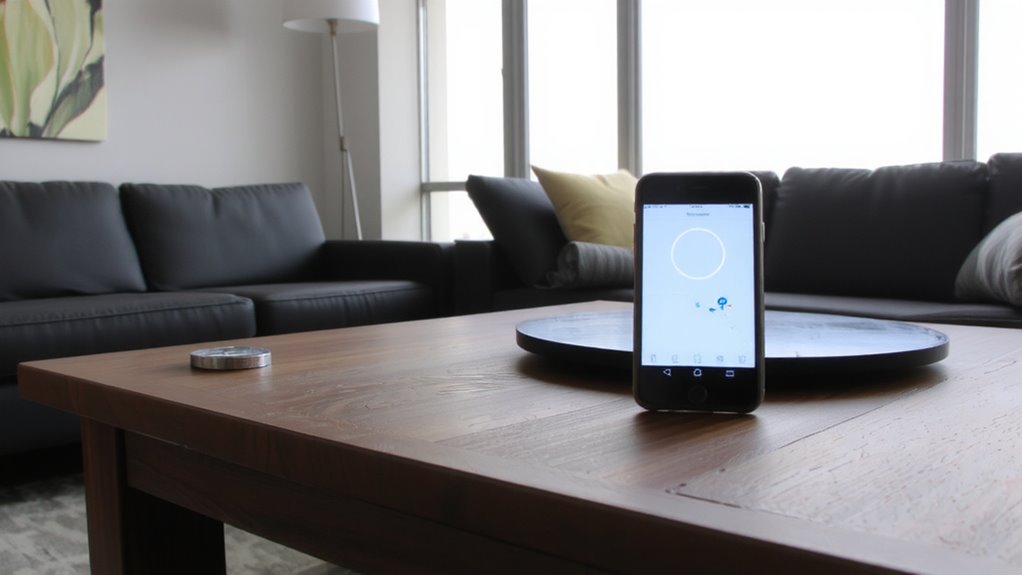
With location-based automation, your home’s security can adapt to your daily routine without manual input. To enable geofence auto-lock in the August app, open the app and tap your lock from the dashboard. Select “Auto-Unlock & Auto-Lock” settings, then toggle on “Geofence Auto-Lock.” You’ll need to grant location access, so make sure user permissions are properly set in your phone’s settings. This guarantees the app tracks proximity accurately. Keep your August app updated, as app updates often improve location tracking reliability and security. Without the latest version, features may not work correctly. You’ll also want to guarantee Bluetooth and GPS stay active. The feature uses your smartphone’s GPS signal to detect when you leave and locks the door once you’re a certain distance away. It’s automatic, but only works if permissions and updates are current. Test it once enabled to confirm it functions as expected.
Set the Right Geofence Distance
Since every home and routine differs, choosing the right geofence distance guarantees your door locks reliably without triggering too soon or too late. You’ll want to set a distance that accounts for signal interference and environmental obstacles like tall buildings or dense tree cover, which can weaken GPS accuracy. Most users find 200 to 500 feet works best, balancing prompt locking with consistent detection. If you set it too close, like under 1100 feet, your phone might not register exit in time. Too far-over 800 feet-and you risk locking while still near home. Test different radii during your normal routine, then adjust based on results. Remember, walls, parking structures, and even weather contribute to signal interference. Fine-tuning secures reliability while minimizing false triggers caused by environmental obstacles.
Fix GPS Issues That Break Geofence Locking
Why does your door sometimes fail to lock when you leave the house? Often, it’s due to GPS issues on your phone. Signal interference from tall buildings, tunnels, or dense foliage can confuse location data. Poor GPS calibration may delay or prevent accurate tracking, breaking geofence locking. To fix this, make sure your phone recalibrates its GPS regularly-especially if you travel frequently or reset location settings.
| Issue | Feeling | Solution |
|---|---|---|
| Door stays unlocked | Worry | Recalibrate GPS weekly |
| False “away” triggers | Frustration | Minimize signal interference |
| Delayed locking | Anxiety | Use open-sky calibration |
| Inconsistent results | Doubt | Test after software updates |
Update your phone’s location services settings and avoid obstructions when possible. Regular GPS calibration boosts reliability.
Optimize Battery and Lock Reliability
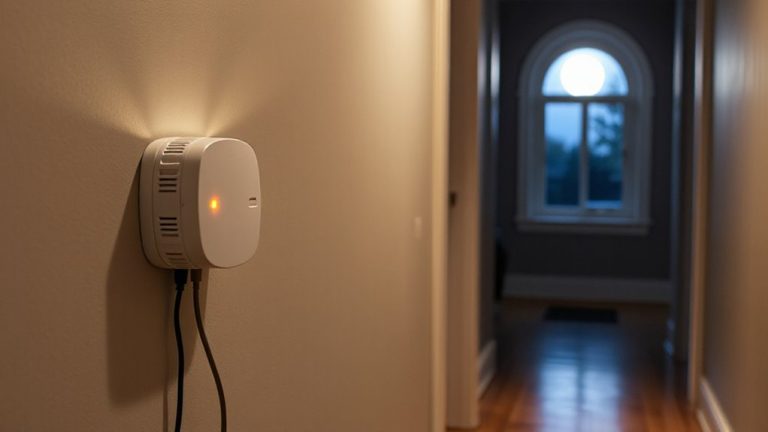
Most smart lock issues stem from power or connectivity problems, so keeping your August Connect running efficiently means managing both battery life and signal stability. To guarantee reliable lock responsiveness, use high-quality alkaline batteries and replace them annually, even if they aren’t fully drained. Enabling Battery conservation mode in the August app reduces background activity, extending battery life without sacrificing key functions. Place your Connect hub within 40 feet of your router for strong Wi-Fi signal, minimizing communication delays. Avoid thick walls or metal obstructions that can weaken connectivity. Regularly check the app for firmware updates, as they often improve efficiency and security. A stable setup guarantees geofenced auto-locking works reliably, reducing false triggers. Consistent lock responsiveness depends on both device power and network quality, so monitor both to maintain performance and security. For those integrating with a home automation system, consider models that offer native Home Assistant support for deeper customization and automation options.
On a final note
You’ve set up geofenced auto-locking with August Connect using your phone’s GPS. It works reliably when configured correctly, but depends on GPS accuracy and battery settings. Keep Location Services on, set the geofence between 50–200 feet, and avoid power-saving modes that disrupt signals. While convenient, test locks often and have a backup plan. This feature enhances security, but only with consistent phone connectivity and app permissions enabled.