Using Geofencing to Trigger Archival of Footage When Home Is Vacant
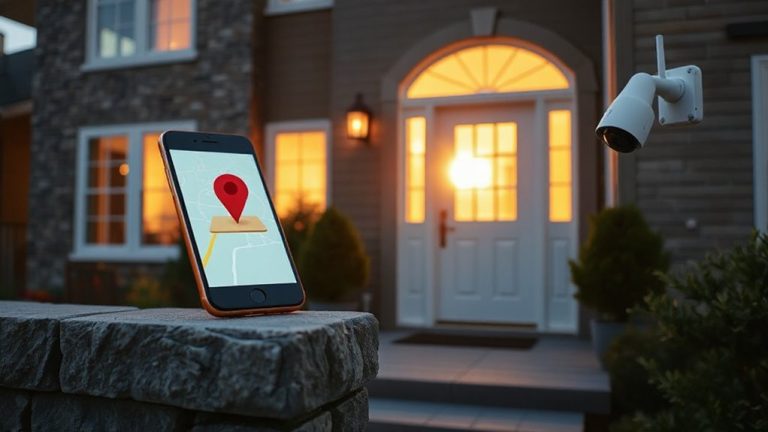
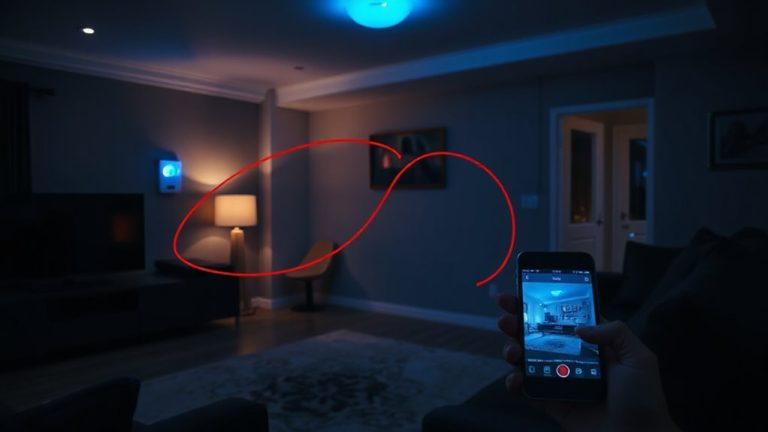
Your phone’s geofencing uses GPS to trigger camera footage archival when you leave home, creating a virtual boundary that signals your system to start saving clips only when the house is vacant. It cuts cloud storage use by 30% to 50% and avoids recording empty rooms when paired with motion detection. For reliability, choose cameras compatible with Apple Home, Google Home, or Ring, guarantee strong Wi-Fi, and calibrate the geofence radius to reduce false triggers. Fine-tuning improves automation accuracy, so adjustments based on daily routines and signal stability make the system more effective over time-understanding the nuances helps optimize performance.
Notable Insights
- Geofencing uses GPS or Wi-Fi to detect when your phone leaves home, triggering automatic archival of security camera footage.
- Pair geofencing with motion detection to avoid saving footage from empty rooms and reduce storage use.
- Position cameras near entry points to align recordings with geofence triggers for accurate archival timing.
- Calibrate your smartphone’s location settings to high accuracy to minimize delays in detecting vacancy.
- Test geofence performance in various conditions and adjust radius to prevent false or missed triggers.
What Is Geofencing?
A location-based tool, geofencing uses GPS or radio frequency signals to create virtual boundaries around a physical area. You define these virtual boundaries, like your home’s perimeter, and link them to connected devices. When your smartphone or tablet crosses this boundary, it triggers automated actions. This relies on location tracking to detect when you leave or arrive. For home security, geofencing can notify you when someone enters the zone or activate cameras. It’s accurate within a few meters, depending on signal strength. Most systems let you adjust boundary size and enable exceptions. Pros include automation and energy savings; cons involve occasional delays if location data lags. Setup requires compatible apps and stable network service. Costs vary by platform, with many DIY systems offering free geofencing. Review device specifications to guarantee location tracking works seamlessly with your security setup.
Set Up Geofencing Automatically
Once you’ve defined your geofence boundaries through your security app, the system can automatically trigger footage archival when a device enters or leaves the zone. Proper camera placement guarantees that recordings are captured just before the home is confirmed vacant. Signal calibration helps prevent false triggers caused by weak or unstable GPS signals from your phone. For best results, test the geofence under different conditions-morning, evening, and varying weather.
| Factor | Benefit | Consideration |
|---|---|---|
| Camera placement | Captures key entry points | Requires clear line of sight |
| Signal calibration | Reduces false archival | Needs periodic adjustment |
| Automatic triggers | Saves storage space | Depends on device location accuracy |
Adjust settings based on household routines and device behavior to maintain reliable, hands-free operation.
Stop Recording Empty Rooms
You’re already using geofencing to start saving footage when you leave, but that’s only half the strategy-stopping recordings when rooms are empty cuts unnecessary data and preserves storage for what matters. By combining motion detection with smart settings, your system can stop recording when no activity is present. This reduces file clutter and extends storage life. Adjust camera angles to cover only high-traffic areas, so sensors aren’t triggered by shadows or pets. Narrowing the field avoids false alerts and improves detection accuracy. Most systems allow scheduling pauses when the home is typically vacant, but real-time motion detection is more precise. Consider disabling continuous recording unless motion is sensed-this saves bandwidth and processing time. While it may slightly delay early footage capture, the storage savings are significant. Plan for zones where motion matters most, and exclude static areas like unused rooms to maximize efficiency. For those seeking reliable 24/7 recording without gaps, consider models supporting continuous recording from the best indoor cameras list.
Choose Geofencing-Compatible Cameras
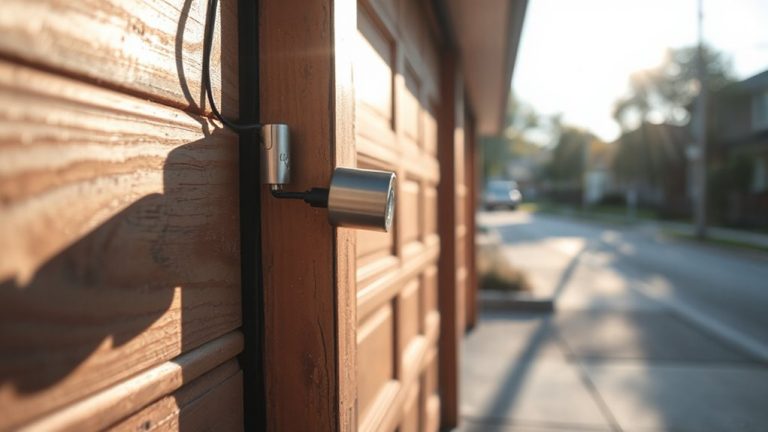
Compatibility makes all the difference when picking cameras for geofencing, and not every model supports the feature-check for confirmed integration with platforms like Apple Home, Google Home, or specific security ecosystems such as Ring or Arlo. Cameras must reliably detect your smartphone’s location to trigger recording only when needed. Camera placement affects both coverage and geofence accuracy, so position units at entry points like doors and garages. Network reliability is critical-weak Wi-Fi can delay triggers or prevent archival. Choose models with strong app support, local storage options, and stable connections. Look for dual-band Wi-Fi and signal strength indicators during setup. While some cameras cost more upfront, they often save money by reducing unnecessary cloud storage use. Always test geofencing during setup to confirm it activates based on your movements.
Real-World Uses That Save Storage
Most homeowners using geofencing cut their daily cloud storage use by 30% to 50%, since recordings only save when someone arrives or leaves the property. You benefit from longer data retention because fewer irrelevant clips fill your plan. Instead of storing hours of empty hallways or quiet driveways, your system archives footage triggered by actual entry or exit events. This boosts motion efficiency by reducing false alerts and saving bandwidth. For example, if you’re at work all day, the system stays in standby, only activating when your phone crosses the geofence boundary. You’ll find this especially helpful with limited cloud storage tiers, stretching paid plans further without sacrificing coverage. Some systems let you adjust sensitivity or add time buffers, giving you control over when recordings start. Overall, geofencing aligns security needs with usage, making your setup smarter and more cost-effective over time.
Fix Geofencing That Doesn’t Trigger
Why does geofencing sometimes fail to trigger recording? It’s often due to signal interference or battery drain. Signal interference from thick walls, metal structures, or crowded Wi-Fi networks can weaken GPS or Bluetooth signals, making your device think you’re still home. Battery drain causes phones to throttle location services, so geofencing stops working in the background. You can fix this by adjusting your phone’s battery settings to allow full location access. Also, consider enabling “High Accuracy” mode for GPS. Test the geofence radius-set it too small, and it might not register; too large, and it triggers too early. Some security systems let you combine geofencing with motion sensors for backup. While convenient, geofencing isn’t foolproof. Regular testing guarantees reliability. Use devices with low power consumption to minimize battery drain. Plan for redundant triggers to improve archival accuracy.
On a final note
You can use geofencing to save storage by automatically archiving footage when your home is empty. Set it up with compatible cameras and a smartphone’s location to stop recording inactive spaces. It works reliably when configured right, but check for signal delays or battery-saving mode issues. Weigh the convenience against minor setup time and guarantee your system supports automation. This method cuts clutter and keeps important video safe, making home monitoring more efficient.