Creating Emergency Override Protocols for Biometric Locks When Fingerprints Fail Due to Injury
If your fingerprint gets injured, set up facial recognition or a backup PIN now-it’s fast, reliable, and works when cuts or swelling block sensors. Trusted contacts can access your phone securely with time-limited keys, but pick someone you trust completely. Test these methods weekly and after updates to guarantee access. Facial recognition with liveness detection offers strong security and works in under a second. Without a plan, you could stay locked out for days. Choosing more than one backup gives you better odds when injury strikes.
Notable Insights
- Injuries like cuts or burns can impair fingerprint recognition, requiring reliable alternative access methods.
- Configure emergency PINs or security codes as they offer high reliability and ease of use during biometric failure.
- Enable facial recognition with liveness detection to maintain fast, secure access when fingerprints are damaged.
- Designate trusted contacts who can send temporary, encrypted unlock keys via secure channels for emergency access.
- Regularly test all backup methods, including PINs, facial recognition, and trusted contact protocols, to ensure functionality.
When Injury Breaks Your Fingerprint Access
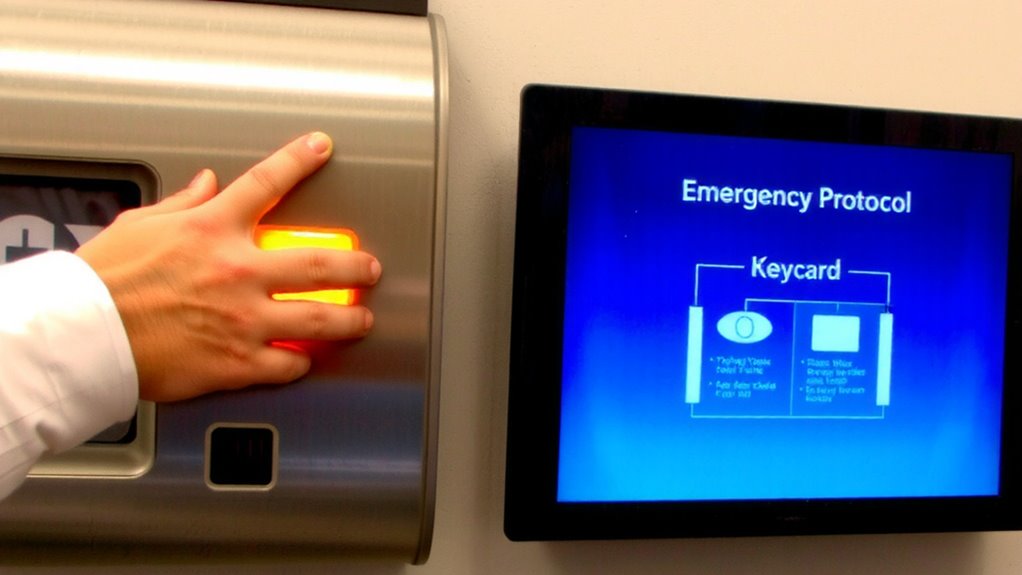
What happens when a cut, burn, or swelling on your finger keeps you from opening your phone or home smart lock? You’re locked out, even though the device is yours. Injuries disrupt biometric access because sensors rely on clear ridge patterns. While your body begins fingerprint regeneration naturally, full biometric healing can take days to weeks, depending on severity. Minor abrasions may resolve in a week, but deeper damage might require longer. During this time, sensors often fail to recognize partial patterns. Regrowth isn’t immediate or guaranteed to restore original detail, potentially leading to permanent mismatches. Data shows success rates drop by up to 40% post-injury. Planning ahead is essential. Consider registering multiple fingers initially. Avoid relying on a single biometric input. Though convenient, biometric systems aren’t foolproof. Understand the recovery timeline and technological limits before you’re locked out unexpectedly.
Set Up Backup Access for Injuries
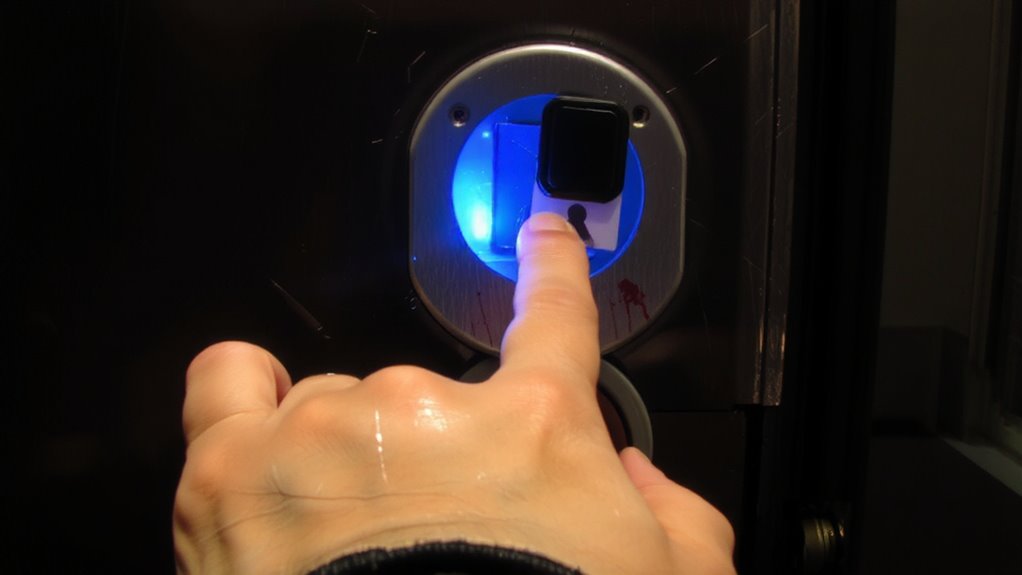
You’ve already seen how injuries can disrupt fingerprint recognition, making it harder to access your devices or home even when they’re registered to you. That’s why setting up backup access options is essential. Reliable methods like voice commands and emergency codes guarantee you’re never locked out during recovery. Below are common backup options, their ease of use, and reliability during injury:
| Method | Ease of Use | Reliability During Injury |
|---|---|---|
| Voice Commands | High | Moderate |
| Emergency Codes | High | High |
| Manual Keys | Medium | High |
| Mobile App Access | High | High |
| Security PIN | High | High |
Emergency codes work best with quick input, while voice commands offer hands-free convenience, though background noise can interfere. Choose at least two backups, test them regularly, and store codes securely. Setup is usually free or low-cost. Planning now saves time and stress later. Many top smart lock models include multiple backup methods to ensure access during emergencies.
Use Facial Recognition as a Backup

While fingerprints may become unreadable due to cuts, swelling, or bandages, facial recognition can serve as a reliable backup method for accessing your devices or smart locks during recovery. You can enable facial authentication as a biometric fallback, ensuring access even when touch-based systems fail. Most modern smartphones and smart locks now support facial recognition with infrared sensors or 3D depth mapping, improving accuracy and security. Though not flawless, the failure rate is low under normal lighting and proper setup. For best results, enroll your face in multiple angles and update the scan if your appearance changes. Facial recognition works quickly, usually accessing in under a second. Consider devices with liveness detection to prevent spoofing. While slightly less secure than fingerprint scans, it’s a practical biometric fallback. Plan access carefully-ensure your system allows seamless switching when injuries occur.
Let Trusted Contacts Help You Unlock Your Phone
If facial recognition fails due to injury or environmental factors, another layer of access control involves allowing trusted contacts to assist in opening your phone. This feature grants trusted access through secure, pre-approved emergency assistance. You can designate specific people-like family or close friends-who can open your device when biometrics fail. The system uses encrypted permission sharing, so your data stays protected. Some phones offer temporary unlock keys sent via secure messaging, valid only once or for a limited time. Benefits include fast help during medical emergencies or accidents. Downsides include risks if your contact’s device is compromised. Always choose someone responsible and tech-savvy. This feature is usually free and built into major operating systems. Setup takes minutes and should be part of your emergency plan. Enabling trusted access strengthens your overall emergency assistance strategy without sacrificing security.
Test Your Backup Plan Before You’re Locked Out
How confident are you that your backup access method will work when you need it most? Don’t wait until you’re locked out to find out it fails. Regular access testing confirms your emergency override-like a PIN, pattern, or trusted contact access-still functions. Just like fire drills, emergency drills for device access help you stay prepared without panic. Test your backup weekly or after any system update, since changes can disable stored fingerprints or alter security settings. Make access testing part of your routine, like checking smoke detectors. It takes less than a minute but prevents critical delays. If you rely on facial recognition or a secondary authentication method, verify those work too. Written down or digital, keep recovery steps updated. A tested plan is the difference between quick entry and total lockout. Confirm it now-before injury makes it urgent. For added reliability, consider models with top digital lock features that support multiple backup methods.
Get Back Into Your Phone After Injury
What happens when a hand injury prevents you from accessing your phone with a fingerprint or face scan? You’ll need a reliable backup method. Voice commands can help you make calls or send messages without touching the screen, especially if you’ve enabled virtual assistants like Siri or Google Assistant. However, they won’t access the device. For full access, a password reset is often required. Most smartphones allow this through trusted devices or recovery emails. Set up these options in advance. Using a strong, memorized passcode is more dependable than biometrics after injury. While voice commands offer hands-free convenience, they aren’t a complete solution. A password reset may take time but guarantees secure access. Planning ahead reduces delays. Test these features now so you’re ready. Emergency access works best when configured before an incident occurs.
On a final note
You should always prepare for biometric failures, especially after an injury. Set up facial recognition or a strong passcode as a backup-both work well when fingerprints fail. Trusted contacts can help regain access if needed. Test your plan now so it works when you need it. Planning takes little time but prevents serious access issues later.