Indoor Cameras With Scheduled Recording Modes to Conserve Power and Storage
You can cut power use and save storage by setting indoor cameras like the Nest Cam Indoor or Arlo Essential to record only during key times. These models support custom schedules and some offer audio-only modes to extend battery life. Pairing motion triggers with scheduled windows minimizes false alerts and processor load. Wyze Cam v3 allows scheduling but lacks audio-only mode. Planning around your household’s routine boosts efficiency while preserving privacy when no one’s home. You’ll find ideal times depend on your home’s activity patterns, and selecting the right model balances features, cost, and energy savings. Different daily settings for weekdays or visits improve accuracy, while local storage reduces long-term cloud fees. Proper setup prevents storage overflow and missed events.
Notable Insights
- Scheduled recording reduces power use by limiting operation to specific times, extending battery life significantly.
- Pairing motion detection with scheduled recording minimizes false alerts and conserves storage space efficiently.
- Cameras like Nest Cam and Arlo support audio-only mode during scheduled times to further save power.
- Custom schedules align with household routines, avoiding unnecessary recording of empty rooms or inactive periods.
- Programming schedules via app allows precise control, with manual override for flexibility outside set times.
Why Scheduled Recording Extends Camera Battery Life
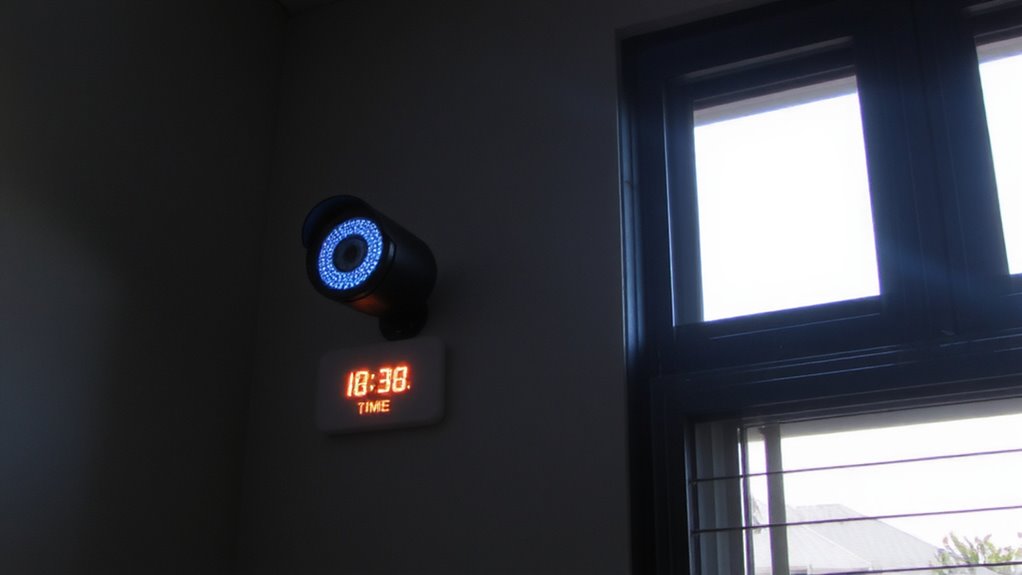
While your indoor camera needs power to record, running it nonstop can drain the battery quickly-especially with constant video processing and wireless transmission. Scheduled recording boosts energy efficiency by limiting operation to specific times, like when you’re away or asleep. This reduces unnecessary power use and extends battery life considerably. Pairing schedules with motion triggers sharpens this benefit-your camera records only when movement occurs during set hours, avoiding false alerts and wasted energy. Unlike constant recording, this combo minimizes wireless signal use and processor load, both major battery drains. Cameras with these features often last weeks longer on a single charge. For best results, align active times with high-risk periods and disable recording when you’re home. Look for models offering customizable time blocks and sensitivity settings for motion triggers. These provide control without sacrificing security. Planning usage this way supports long-term reliability and efficiency. Some top models even support wireless indoor cameras no subscription for added cost savings and convenience.
Top Indoor Cameras With Custom Recording Schedules
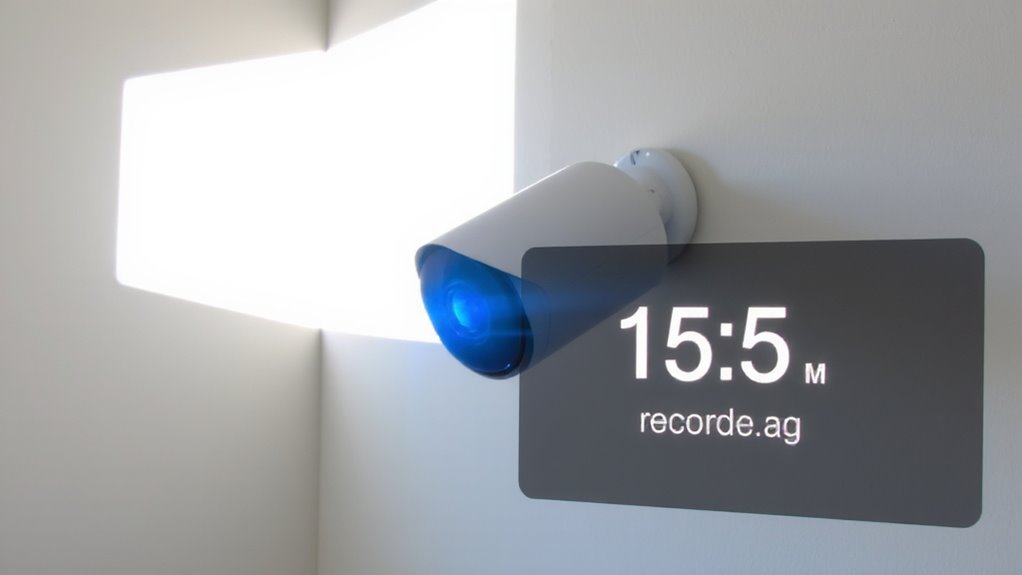
You’ve seen how scheduling recordings conserves battery by limiting power use to key times, and now you can put that efficiency into practice with cameras built to support it. These top indoor models offer custom recording schedules that work around your routine, reducing unnecessary footage caused by motion detection limitations. Some even include audio only recording options to save storage and power while monitoring sound activity. A key factor in choosing the right device is understanding your monitoring needs based on home layout and daily activity patterns.
| Camera Model | Custom Schedule Support | Audio Only Mode |
|---|---|---|
| Nest Cam Indoor | Yes | Yes |
| Arlo Essential Indoor | Yes | Yes |
| Wyze Cam v3 | Yes | No |
Each balances features, price, and power needs. Consider how motion triggers and audio settings align with your privacy and monitoring goals when choosing.
How to Program Your Camera’s Recording Times
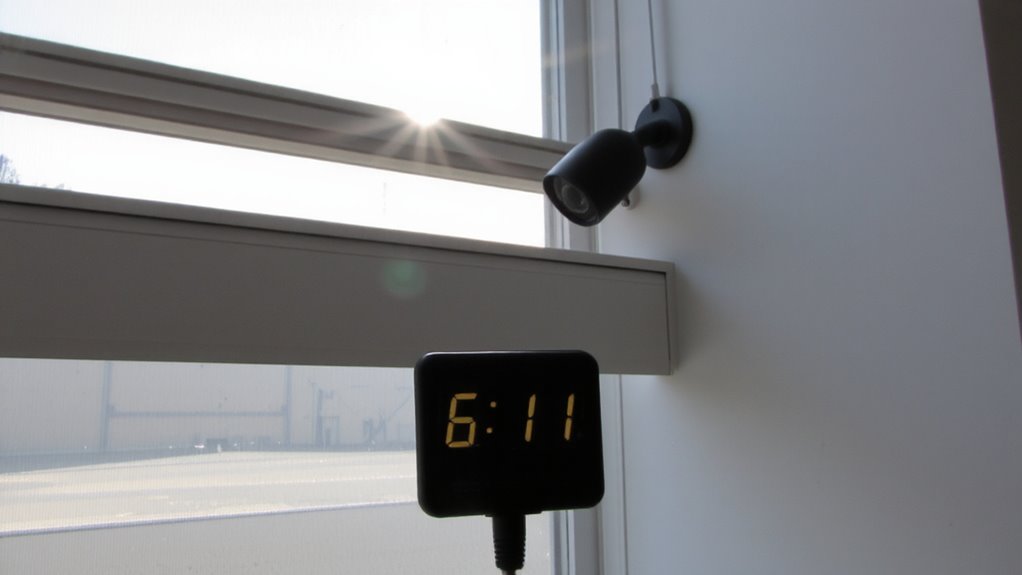
How do you set your camera to record only when it matters most? Most indoor cameras let you program exact recording times through a mobile app or web portal. Start by selecting your preferred schedule-say, from 8 a.m. to 6 p.m. on weekdays-so the camera records only during those windows. You can pair this with motion detection to further reduce unnecessary footage. When motion is detected, the camera saves short clips, saving both power and storage. Even with a set schedule, you’ll still have manual override options. That means you can turn recording on or off instantly, anytime. This flexibility guarantees coverage during unexpected events. Check your camera’s app settings to enable both scheduled times and motion triggers. Some models offer cloud backups, but local storage often cuts long-term costs. Always test your setup to confirm it’s working. For optimal performance, choose from the best indoor security cameras that support customizable recording modes.
Smart Schedules for Pets, Kids, and Nannies
Setting a recording schedule isn’t just about when the camera runs-it’s about aligning coverage with the people and routines in your home. When you have pets, syncing your system with their routines guarantees you capture key moments, like chewing or scratching, without filling storage with idle footage. For child safety, scheduled recording during naps or playtime gives you reliable monitoring while protecting privacy when it’s not needed. If a nanny or caregiver is present, running the camera during their shifts supports accountability and peace of mind. Most systems let you set different schedules per day, so you can adjust for school days, weekends, or visits. Use motion-triggered recording within scheduled windows to balance detail and efficiency. Smart scheduling reduces power use and storage waste, focusing only on high-value times. With consistent planning, you maximize both security and system performance.
5 Mistakes That Waste Storage and Miss Events
While it might seem efficient to record constantly or leave settings on default, doing so often leads to wasted storage and missed critical events. Storage overflow can quickly occur, forcing older footage to delete automatically-even important clips. You might also experience event gaps if motion sensitivity is too low or recording isn’t aligned with activity patterns. Customizing your schedule prevents these issues.
| Mistake | Impact |
|---|---|
| Continuous recording | Causes storage overflow, shortens retention period |
| Low motion sensitivity | Misses key actions, creates event gaps |
| Ignoring time-based routines | Records empty rooms, wastes power and space |
Adjust settings based on household patterns. Use event-triggered recording during key times instead of 24/7 mode. This reduces clutter, extends usable storage, and guarantees you capture what matters most-without gaps.
When to Record (and When Not To) for Privacy
Isn’t it important to know when your indoor camera is capturing footage-especially in a place meant to feel private, like your home? Setting clear privacy boundaries helps you decide when to record and when not to. For example, disable recording in bedrooms or bathrooms, or during times when family members are home and expect privacy. Scheduled modes let you align recording only with necessary hours, like when the house is empty. This reduces unnecessary data retention and lowers storage costs. Shorter retention periods also limit exposure if footage is ever compromised. Review your camera’s settings monthly to maintain alignment with household routines. Consider models that let you customize zones and schedules easily. Balancing security with respect for personal space isn’t just thoughtful-it’s a smarter, more responsible way to use technology in your everyday life.
Syncing Scheduled Cameras With Alexa and Google Home
You can take control of your indoor security cameras by syncing them with voice assistants like Alexa or Google Home, building on the privacy habits you’ve already set through scheduled recording. Voice integration lets you check camera status, start recordings, or disable devices using simple voice commands-no app needed. With Routine automation, you can sync camera schedules to daily habits, like turning off recording when you say “goodnight” or arming them when you leave. For example, telling Alexa to “start bedtime mode” could stop indoor cameras and lock doors automatically. Most compatible cameras support these features through built-in integrations, though some require a hub or subscription. Be sure to review privacy settings, as voice platforms may store audio. Overall, combining scheduled recording with smart assistants improves convenience without sacrificing security.
On a final note
You can save battery and storage by using scheduled recording on indoor cameras. Set times when activity is likely, like during work hours or while kids are home. Cameras like the Arlo Q and Nest Cam Indoor offer customizable schedules and smart alerts. Avoid constant recording to protect privacy and reduce clutter. Sync with Alexa or Google for voice control. Plan your schedule around household routines, and review footage regularly to adjust settings. This saves time, energy, and keeps your data organized.