How to Pair Indoor Security Cameras With Smart Home Hubs for Unified Control
Choose a hub like Samsung SmartThings or Apple Home, which supports your camera’s protocol-Zigbee, Z-Wave, or Wi-Fi-for reliable connectivity. Check manufacturer specs and official compatibility lists to confirm pairing is supported. Open your hub’s app, add the camera by scanning a QR code or entering its serial, and verify it’s near the hub during setup. Test motion alerts, live viewing, and automation triggers. Keep firmware updated and minimize signal interference from walls or electronics. You’ll get smoother performance by using certified devices together-especially with HomeKit Secure Video-where full integration activates advanced features.
Notable Insights
- Choose a smart home hub like Samsung SmartThings or Apple HomeKit for strong camera ecosystem compatibility.
- Verify camera compatibility with your hub by checking manufacturer specs and supported communication protocols.
- Use the hub’s app to add cameras by scanning QR codes or entering serial numbers during setup.
- Automate responses by linking cameras to lights and alarms for motion-triggered, unified security actions.
- Test live feeds and motion alerts, then reposition cameras or update firmware to fix connection issues.
Choose the Right Smart Home Hub for Your Cameras
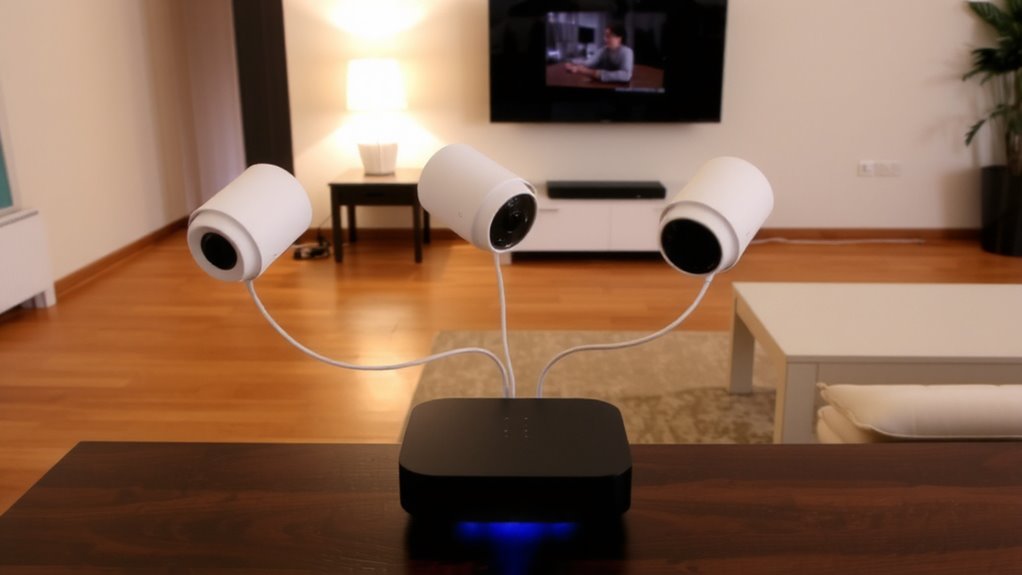
While picking a smart home hub might seem like a small detail, getting it right matters for how well your security cameras work. You need to take into account brand integration and compatibility testing before choosing. Hubs like Samsung SmartThings or Apple HomeKit offer strong brand integration, meaning devices from the same ecosystem usually connect smoothly. But if you mix brands, compatibility testing becomes essential. Check manufacturer specs to confirm your cameras support the hub’s protocol, such as Zigbee, Z-Wave, or Wi-Fi. Some hubs require specific certification-HomeKit Secure Video, for example, demands strict compatibility testing. This guarantees reliable alerts and video streaming. A well-matched hub prevents delays, sync issues, or dropped feeds. Planning around supported brands and protocols now saves time and cost later. Choose a hub that matches your camera’s tech specs and long-term security needs. For seamless automation, consider integrating your cameras with top smart home devices that are proven to work well within your chosen ecosystem.
Verify Your Cameras Work With the Hub
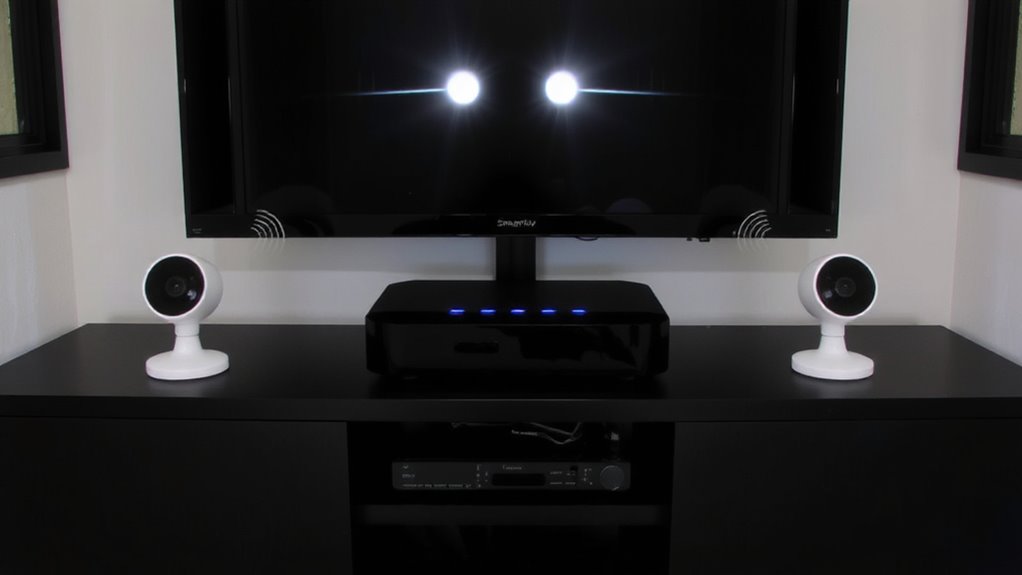
Once you’ve selected a smart home hub, the next step is confirming your security cameras are fully compatible with it, so you avoid connectivity issues down the line. Check manufacturer specs for camera compatibility-some brands only work with specific hubs. Look for shared protocols like Zigbee, Z-Wave, or Wi-Fi with support in your hub. Confirm firmware versions support integration, as outdated software can block hub synchronization. Test if features like motion alerts, live viewing, and recording transfer correctly once linked. Avoid assuming all “smart” cameras work universally. Cameras from hubs like Samsung SmartThings or Hubitat often require certified devices. Review user feedback and product forums for real-world sync issues. When in doubt, consult compatibility lists on the hub’s official site. Ensuring proper camera compatibility now saves time, cost, and complexity later-making your system reliable, responsive, and truly unified through seamless hub synchronization. A top-rated smart home hub can simplify this integration by supporting a broader range of devices out of the box.
Connect Cameras Through the Hub App
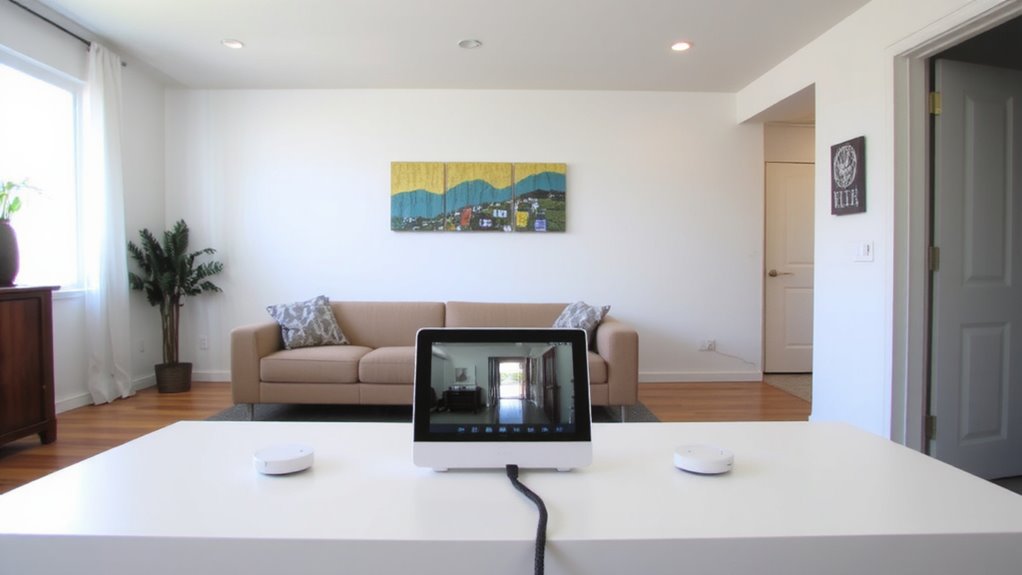
How do you get your security cameras talking to your smart home hub? You start by opening the hub app and selecting “Add Device.” Follow the prompts to enable camera integration, making sure your cameras are powered on and near the hub for strong hub connectivity. Most apps will scan for nearby devices automatically, but you may need to enter a serial number or scan a QR code. Guarantee your Wi-Fi is stable, as poor connections disrupt setup. Once detected, the app guides you through syncing each camera. Allow a few minutes per camera for firmware checks and registration. Some hubs support multiple camera brands, but verify compatibility first. If pairing fails, restart both devices and retry. Successful pairing means live feeds appear in the app, ready for monitoring. This streamlined process centralizes control, improving overall system responsiveness and ease of use. Top systems in 2025 offer seamless integration with leading smart home platforms.
Automate Lights and Alarms When Motion Is Detected
When motion triggers your security camera, you can have lights turn on and alarms sound automatically-giving you an extra layer of protection without lifting a finger. This feature uses motion alerts and scene automation to create responsive environments. For example, if movement is detected at night, indoor lights can flash, and a smart siren can activate, deterring intruders.
| Feature | Benefit |
|---|---|
| Motion alerts | Notify you instantly when activity occurs |
| Scene automation | Syncs lights, alarms, and cameras |
| Custom schedules | Activate rules only at certain times |
Set rules through your hub app to control which devices respond and how. You’ll need compatible smart lights and alarms, but most systems support this. Planning your automation reduces false alarms. Use it wisely-avoid disturbing household members during sleep hours. With proper setup, you gain actionable responses backed by real-time detection.
Control Cameras With Voice Commands
Why rely on your phone when you can check who’s at the door using just your voice? With voice integration, you can tell your smart hub to show live camera feeds on a display or ask what the backyard camera sees. This only works if your cameras support voice integration through platforms like Alexa or Google Assistant. Check camera compatibility before buying-some brands work better with certain hubs. For example, Ring pairs well with Alexa, while Nest works best with Google. That said, not all features may be voice-accessible, so review specs carefully. Voice commands save time and offer hands-free control, especially when your phone isn’t handy. Keep in mind, delays can happen if your Wi-Fi lags. Choosing compatible hardware guarantees smooth operation, better accessibility, and full use of your smart home system without extra apps or steps.
Test Your Setup and Fix Connection Issues
Ever wonder why your camera feed cuts out or won’t load on the hub? Connection issues often stem from poor camera placement or signal interference. Test your setup by viewing the live feed from different rooms and checking for lag or disconnections. Move the camera slightly if you notice delays, as even small adjustments can reduce signal interference from walls or large appliances. For best results, keep your camera within 30 feet of the hub and avoid placing it near microwaves or cordless phones.
| Issue | Solution |
|---|---|
| Feed lagging | Reposition camera closer to hub |
| No connection | Check Wi-Fi and restart both devices |
| Poor video | Adjust camera placement to avoid interference |
Restarting the hub and camera together often resolves sync problems. Confirm all firmware updates are installed for ideal performance.
On a final note
Choose a hub compatible with your cameras to guarantee smooth integration. Most systems work with Alexa, Google, or Apple Home intervations, but check specifications first. Use the hub’s app to add cameras, then enable motion-triggered automations like lights or alarms. Test connections regularly and troubleshoot Wi-Fi issues promptly. Voice control adds convenience, but reliable performance depends on strong network stability and up-to-date firmware. Plan for long-term costs like cloud storage fees when budgeting.