Using Apple Home Key Technology to Unlock Compatible Smart Locks With iPhone Near Field Communication
You can use your iPhone’s NFC to open compatible smart locks with Apple Home Key, storing an encrypted digital key in the Wallet app. It works on iPhone XS or later, requires Face ID or Touch ID, and functions even without internet or when your battery is low. Just tap your phone near the lock. The key stays secure in the device’s Secure Element. Supported locks include August and Schlage models-setup takes minutes. You’ll find more details on sharing access and troubleshooting setup issues.
Notable Insights
- Apple Home Key stores a digital house key in the iPhone’s Wallet app using NFC technology.
- Compatible iPhones include iPhone XS or later running iOS 15 or higher.
- Unlock by holding iPhone near a supported smart lock after authenticating with Face ID or Touch ID.
- The encrypted key is stored securely in the iPhone’s Secure Element and doesn’t require internet access.
- Users can share keys and set temporary access via the Home app on supported locks like August and Schlage.
What Is Apple Home Key and How Does It Work?
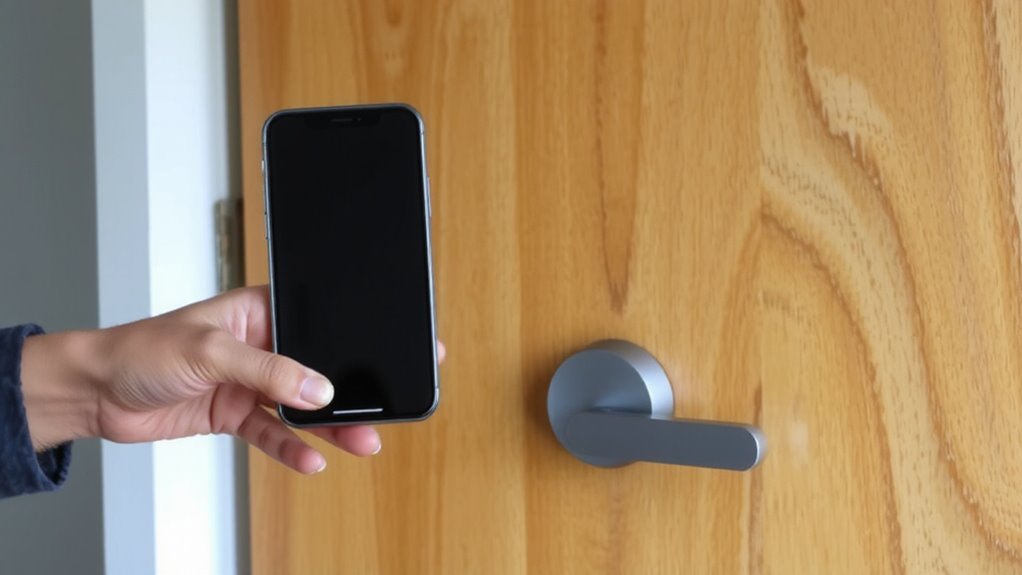
You can think of Apple Home Key as a digital version of your house key, stored securely on your iPhone or Apple Watch. It uses NFC technology to open compatible smart locks without needing a physical key. This feature integrates smoothly into home automation systems, letting you trigger lights or thermostats when you open the door. Digital security is strong-your key is encrypted and stored in the Secure Element, so it’s protected even if your device is lost. You can share access with family or guests and revoke it anytime. No internet is needed for opening, which improves reliability. While setup is straightforward through the Home app, you’ll need a supported iPhone and smart lock. There’s no extra cost beyond the hardware, and battery drain is minimal. Home Key offers convenience and strong security for daily use. For those exploring options, the best smart locks include models with Apple Home Key support that seamlessly work with this NFC-based access system.
Which iPhones and Smart Locks Support Home Key?
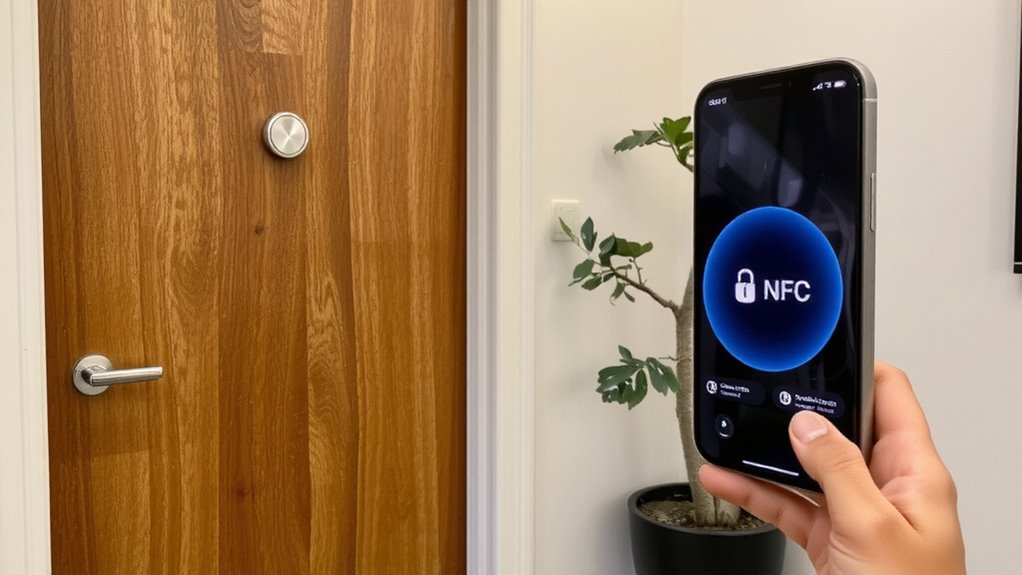
A growing number of Apple devices and smart locks now support Home Key, though compatibility remains limited to newer models. For iPhone compatibility, you’ll need an iPhone XS or later, including all iPhone 11, 12, 13, 14, and 15 models-these support the necessary NFC and Secure Element technology. Older iPhones don’t have the required hardware. As for smart lock brands, only select models work with Home Key. Compatible smart lock brands include August (Wi-Fi and Gen 3 models), Schlage (Sense and Encode models), and Ultraloq (U-Bolt Pro). These locks must specifically list Home Key support in their firmware and setup. Always check the manufacturer’s website before buying, since not all versions of a model are compatible. While expanding, the ecosystem is still limited, so confirm both iPhone compatibility and Smart lock brands before investing. For more detailed options, check the best smart locks based on expert reviews and user ratings.
How to Set Up Home Key on Your iPhone
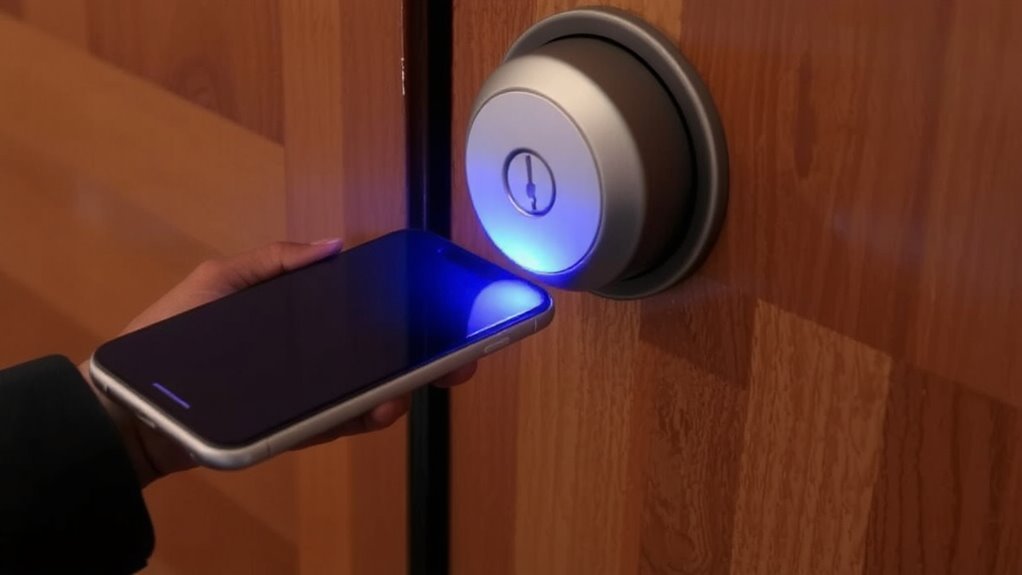
Setting up Home Key on your iPhone starts with ensuring your device and smart lock are compatible, as the feature won’t appear if your hardware isn’t supported. Device compatibility is essential-you’ll need an iPhone 8 or later running iOS 15 or higher, plus a Home Key–enabled smart lock. Once confirmed, open the Wallet app and tap the plus sign to begin the Setup process. Follow the prompts to scan your lock’s setup code or scan a QR code from the lock’s manual. You’ll be asked to assign the key to a specific door and location in the Home app. The Setup process also lets you share digital keys securely with family or guests. Make sure your iPhone’s NFC and Wallet features are enabled. No extra fees are involved, and the entire process typically takes under five minutes with a stable internet connection. For seamless integration, consider choosing one of the best smart locks for Home Assistant.
Unlock Your Door With iPhone NFC
How does your iPhone open a door without a physical key? It uses near field communication (NFC) to transmit encrypted digital keys stored in the Apple Wallet. When you hold your iPhone near a compatible smart lock, the device authenticates your mobile credentials securely, opening the door. No internet connection is needed-just your phone and the lock. This works even if your iPhone battery is low, thanks to a power reserve feature.
| Feature | Benefit |
|---|---|
| NFC technology | Enables contactless access |
| Digital keys | Replace traditional keys securely |
| Mobile credentials | Work without Wi-Fi or cellular |
Using digital keys through Apple Home Key offers reliable, secure access. You benefit from strong encryption and seamless integration with your iPhone. Make sure your smart lock supports Home Key for full compatibility. This system simplifies entry while maintaining high security standards.
Can You Share Home Key Access?
Ever wondered whether you can let someone else into your home using Apple Home Key without handing over a physical key? Yes, you can grant Guest access through the Home app, letting trusted individuals open your door with their iPhone or Apple Watch. You control who gets in and when by setting Temporary permissions, which automatically expire after a set time. This feature works well for visiting family, pet sitters, or maintenance workers. You can edit or revoke access remotely, adding flexibility and convenience. Compatible smart locks must support this function, so check your device specifications. While sharing is easy, make certain only trusted people receive access. There’s no extra fee, and setup takes just minutes. Guest access with Temporary permissions gives you practical control over home entry, improving both usability and security without needing physical keys.
Is Apple Home Key Secure?
Security begins with design, and Apple Home Key is built with multiple layers to protect your home. Your iPhone uses secure element technology to store Home Key data, ensuring it’s never backed up to the cloud or shared with Apple. Encryption protocols keep communication between your device and the smart lock protected during every access attempt. You must confirm your identity using biometric authentication-Face ID or Touch ID-so even if someone has your phone, they can’t access your door without your fingerprint or face. The system also supports randomized rolling codes, preventing replay attacks. All data exchanges happen over Near Field Communication, which requires close proximity, reducing remote hacking risks. Apple’s transparency in security practices and regular iOS updates further strengthen protection. While no system is flawless, Home Key’s combination of encryption protocols, biometric authentication, and hardware-level safeguards makes it a trustworthy choice for modern home security.
Why Isn’t My iPhone Unlocking the Door?
What could be stopping your iPhone from opening the door with Apple Home Key? Battery issues might be the culprit-your iPhone needs sufficient charge to power NFC, even when off. If the battery is below a certain level, Home Key won’t activate. Also, signal interference from metal objects, thick phone cases, or nearby electronics can block the NFC signal, preventing communication with the smart lock. Make sure your iPhone is close to the reader, ideally within an inch or two. Confirm that Home Key is set as the default Express Card and that your device supports the feature. Check for software updates, as bugs in older iOS versions may disrupt functionality. Restarting your iPhone or re-adding the Home Key can also resolve glitches. Always have a backup access method, just in case.
On a final note
You can use your iPhone’s NFC to open compatible smart locks with Apple Home Key, provided you have an iPhone 11 or later and a supported lock. Setup is simple through the Wallet app, and you can securely share access with others. The feature works reliably when your iPhone is charged and near the lock. While convenient, it requires compatible hardware and proper configuration for consistent performance.